
Documentation Menu
Installation & API Setup
1. Installing the Plugin
Option A: WordPress Plugin Catalog (Recommended for Basic)
The simplest way to install the Diogen AI Basic version is directly through your WordPress dashboard.
- Login to your WordPress admin panel.
- Go to Plugins > Add New.
- Search for "Diogen AI".
- Click Install Now and then Activate.
Option B: Manual Upload (Required for Pro)
If you've downloaded the plugin zip file (especially for the Pro version), follow these steps:
-
Download the
diogen-ai.zip(ordiogen-ai-pro.zip) file from your account. - In your WordPress admin panel, go to Plugins > Add New.
- Click Upload Plugin at the top of the page.
- Choose the zip file you downloaded and click Install Now.
- Once installed, click Activate Plugin.
Pro Users: If you purchased Diogen AI Pro, you need to have the Basic version installed and active first. The Pro version acts as a powerful extension to the base plugin.
2. Configuring API Keys
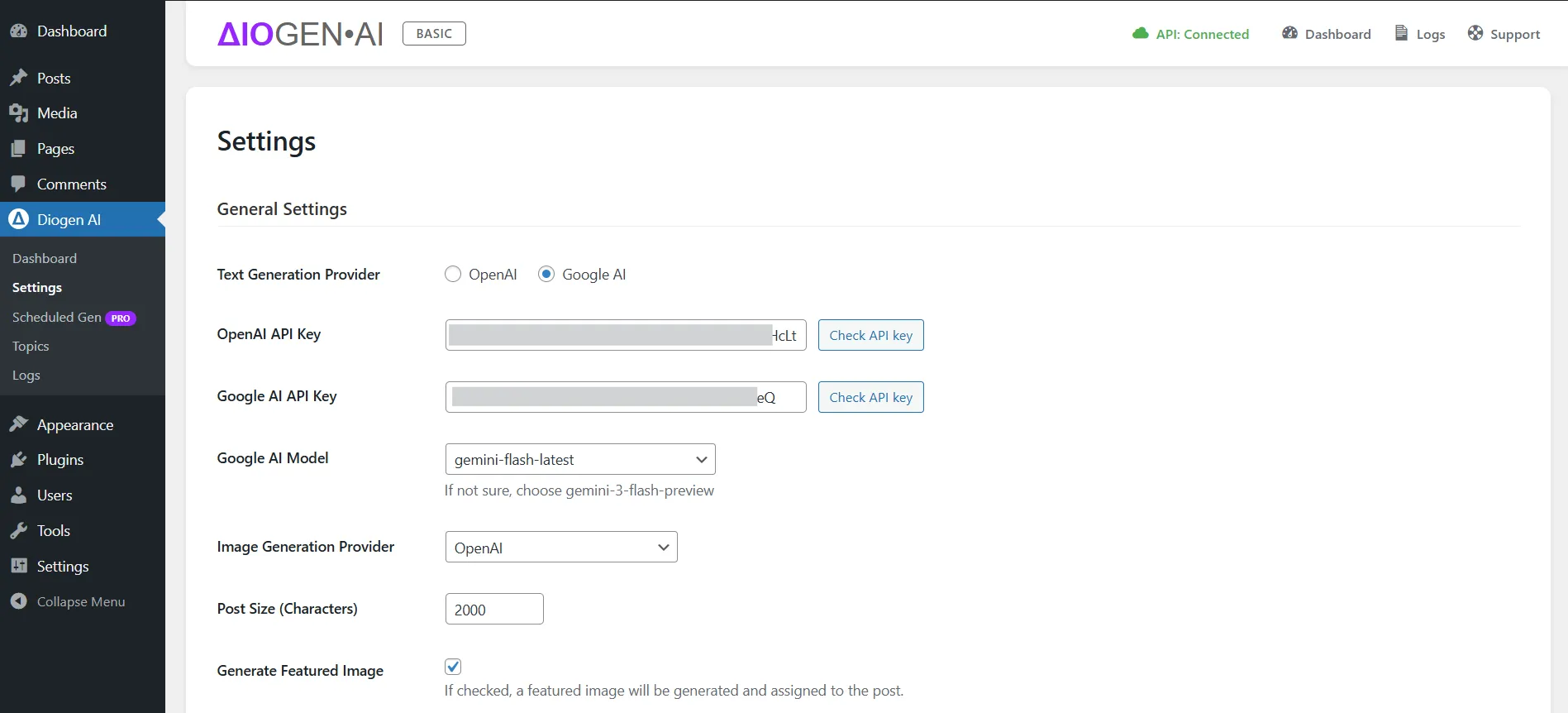
Diogen AI requires an API key from either OpenAI or Google (Gemini) to function. You don't need both; choose the provider you prefer.
Getting an OpenAI Key
- Go to the OpenAI Platform and sign in.
- Navigate to the API Keys section.
- Click Create new secret key.
- Copy the key and paste it into the OpenAI API Key field in the Diogen AI Settings (Diogen AI > Settings).
Getting a Google Gemini Key
- Go to Google's AI Studio.
- Click Get API key and follow the prompts to create one.
- Copy the key and paste it into the Google Gemini API Key field in the Diogen AI Settings (Diogen AI > Settings).
3. Selecting Your Default Model
After entering your API key(s), scroll down on the Settings page to the Generation Settings section. Here, you can select your preferred Text Generation Engine from the dropdown menu (e.g., GPT-4o, Gemini Flash). Be sure to Save Changes.