
Documentation Menu
Generation Logs
Diogen AI keeps a detailed record of every generation attempt. Whether you're generating manually or using the Pro Scheduler, the logs provide transparency and help you troubleshoot any issues.
1. Accessing the Logs
To view your generation history, navigate to Diogen AI > Logs in your WordPress admin panel.
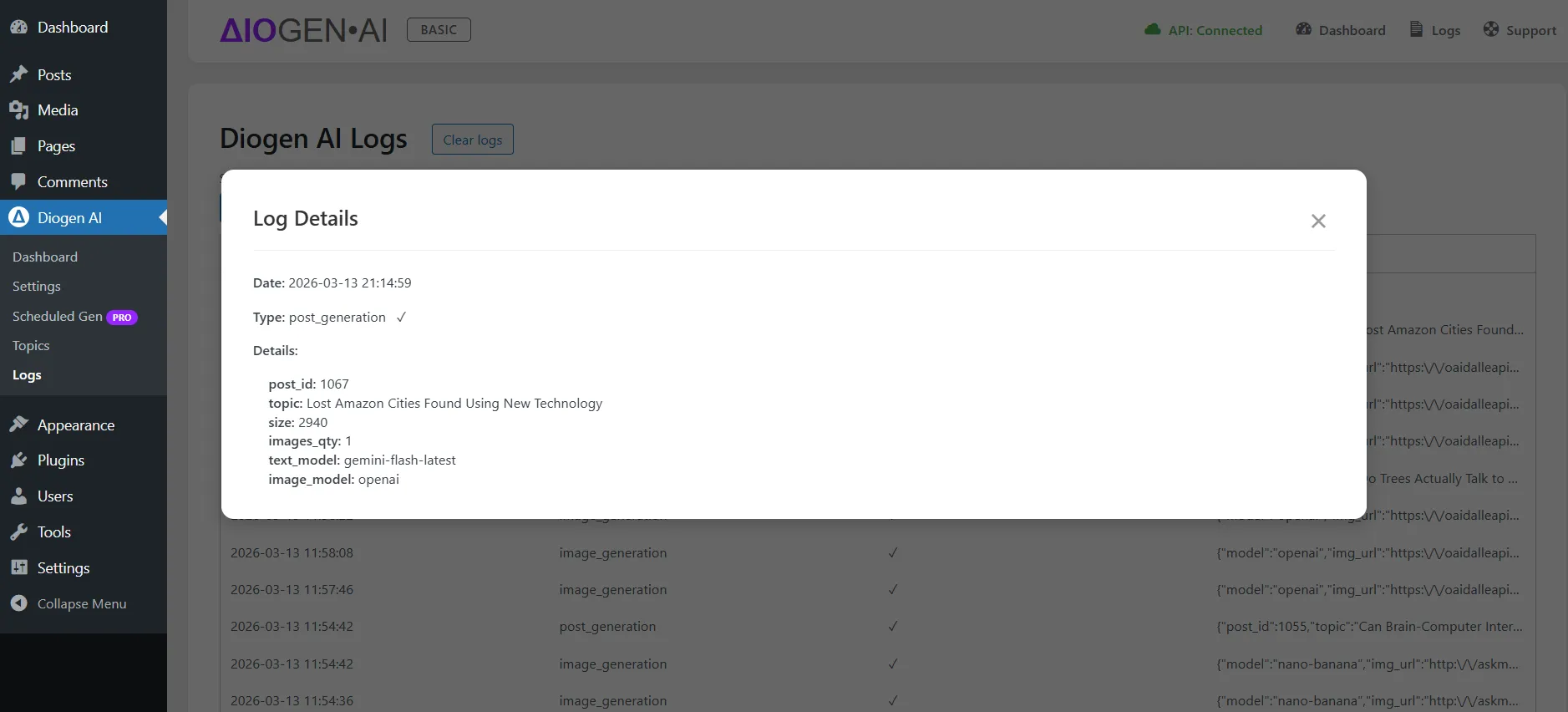
2. Understanding Log Data
The log table provides several key pieces of information for each entry:
- Date: The exact time the generation took place.
- Type: Type of generation: post, image, topics, scheduled generation.
- Status: Indicates if the generation was successful or failed.
- Details: Detailed information about the generation.
3. Troubleshooting with Logs
If a generation fails, the logs are the first place you should check. Common issues recorded in the logs include:
- API Key Errors: If your OpenAI or Gemini key is invalid or has expired.
- Quota Limits: If you've reached your API spending limit.
- Connection Timeouts: Temporary network issues between your server and the AI provider.
Pro Tip: In the Pro version, logs are essential for monitoring high-volume automated blogs. We recommend checking them periodically to ensure your "set-and-forget" automation is running smoothly.